
Quick Start Guide
Welcome to Laracloak, the platform for building secure interfaces over external automation services.
📋 Prerequisites
Ensure you have the following components installed on your server or local environment:
- PHP 8.2+ (with extensions: bcmath, curl, openssl, mbstring, xml, zip, sqlite3)
- Composer (PHP dependency manager)
- Node.js 18+ & NPM (To compile static assets)
- Web Server: Apache, Nginx, or Laragon (recommended on Windows)
- Database: MySQL/MariaDB (Recommended for production), or SQLite
🚀 Step-by-Step Installation
1. Clone the repository
git clone https://github.com/fuseprods/laracloak.git laracloak
cd laracloak
2. Install dependencies
Use Composer for the backend and NPM for the frontend:
composer install
npm install
npm run build
3. Configure the environment
Copy the example file and generate the encryption key:
cp .env.example .env
php artisan key:generate
4. Prepare the Database
TIP
Recommendation: For production environments, we highly recommend using MySQL 8.0+ or MariaDB. SQLite is excellent for testing or small local instances.
Option A: MySQL / MariaDB (Recommended)
- Create a blank database (e.g.,
laracloak). - Update your
.envfile with your credentials:envDB_CONNECTION=mysql DB_HOST=127.0.0.1 DB_PORT=3306 DB_DATABASE=laracloak DB_USERNAME=your_username DB_PASSWORD=your_password - Run migrations and initial data (seeders):bash
php artisan migrate --seed
Option B: SQLite
- Ensure your
.envis set to SQLite:DB_CONNECTION=sqlite. - Create the database file:
- Windows:
type nul > database/database.sqlite - Linux/Mac:
touch database/database.sqlite
- Windows:
- Run migrations:
php artisan migrate --seed
5. Start the application
If you are using the built-in PHP server:
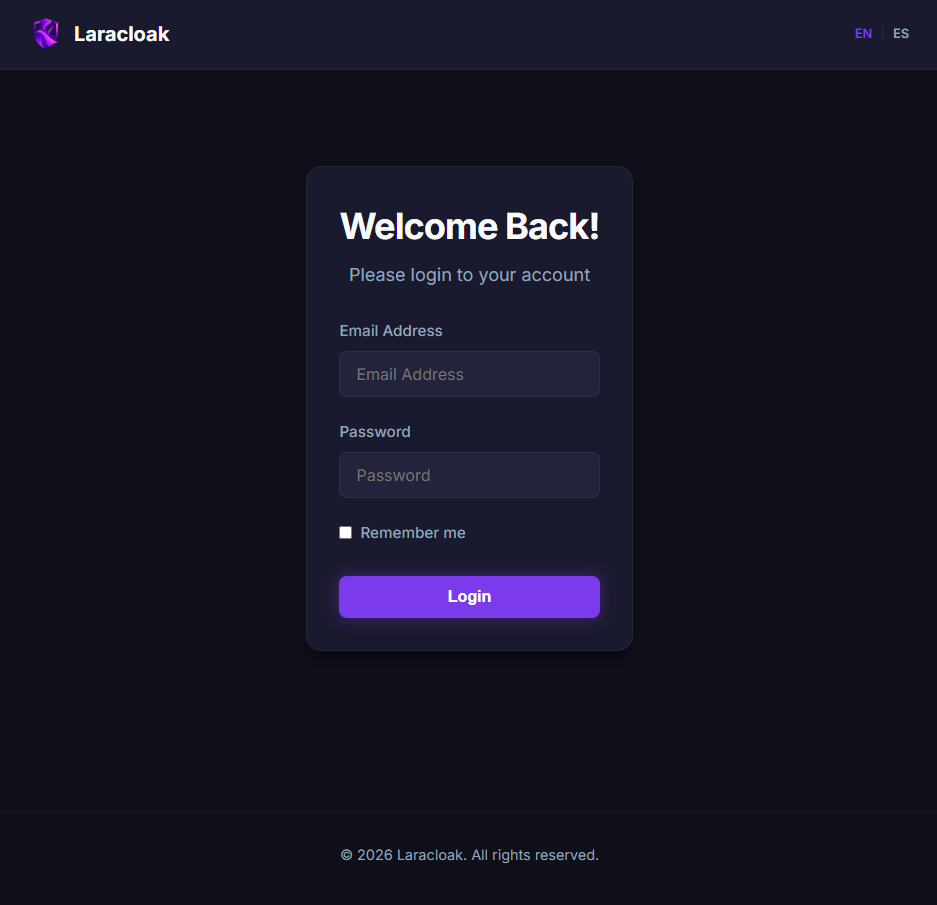
php artisan serveAfter running the --seed command, a default admin user is created. You can customize these credentials in your .env file before seeding:
- Initial Email:
INITIAL_ADMIN_EMAIL(Default:admin@laracloak.com) - Initial Password:
INITIAL_ADMIN_PASSWORD(Default:password)
IMPORTANT
Change these values in your .env before running php artisan migrate --seed for a more secure initial setup.
🌐 Shared Hosting Installation
If you are installing Laracloak on a shared hosting (cPanel, Plesk, etc.), it is essential to correctly configure the Document Root.
1. Configure Document Root
Most shared hostings point to a folder named public_html, www, or httpdocs. Laravel requires the web server to point to the /public folder of the project for security.
Recommended Option: Change your domain or subdomain configuration in the control panel so that the Document Root is public (e.g., /home/user/laracloak/public).
2. Methods if you cannot change the Root
If your hosting does not allow changing the Document Root, you can use one of these methods (ordered from most to least recommended):
Option A: Symbolic Link (Symlink)
If you have SSH access, you can rename your public_html folder (after backing it up) and create a symbolic link pointing to Laracloak's public folder:
ln -s /home/user/laracloak/public /home/user/public_htmlOption B: Rename public folder to public_html
You can physically rename the public folder to public_html and tell Laravel to use this new path. To do this, edit the bootstrap/app.php file as follows:
return Application::configure(basePath: dirname(__DIR__))
    ->withRouting(...)
    ->withMiddleware(...)
    ->withExceptions(...)
    // Add this line:
    ->usePublicPath(realpath(base_path('../public_html')))
    ->create();
Option C: .htaccess Method (Not Recommended)
CAUTION
Security Risk: This method is the most dangerous. If the server is not perfectly configured, sensitive files like .env, error logs, or the SQLite database could be exposed to the public. Only use it as a last resort and ensure you protect hidden files.
Create an .htaccess file in the root of your project (outside public/) with the following content:
<IfModule mod_rewrite.c>
   RewriteEngine On
   RewriteRule ^(.*)$ public/$1 [L]
</IfModule>
🛠️ Next Steps
- Configure Credentials for your upstream services (n8n, APIs).
- Create your first Page (Form or Dashboard).
- Organize your users by Groups and Categories.